Go straight to the task.
Configure the Suite to start with a kiosk web browser, opening a chosen service such as Copilot.
Start with a kiosk browser, open Microsoft 365 applications through Apps and switch naturally with the taskbar or Alt+Tab. A focused Windows shell for VDI, SaaS, kiosks and prepared continuity environments.
VDI Access Suite is the user workspace, not the management server. Use the shell on its own for remote desktops, SaaS and kiosks, or combine it with the Manager for central configuration. It can also provide the user experience in a separately prepared recovery environment.
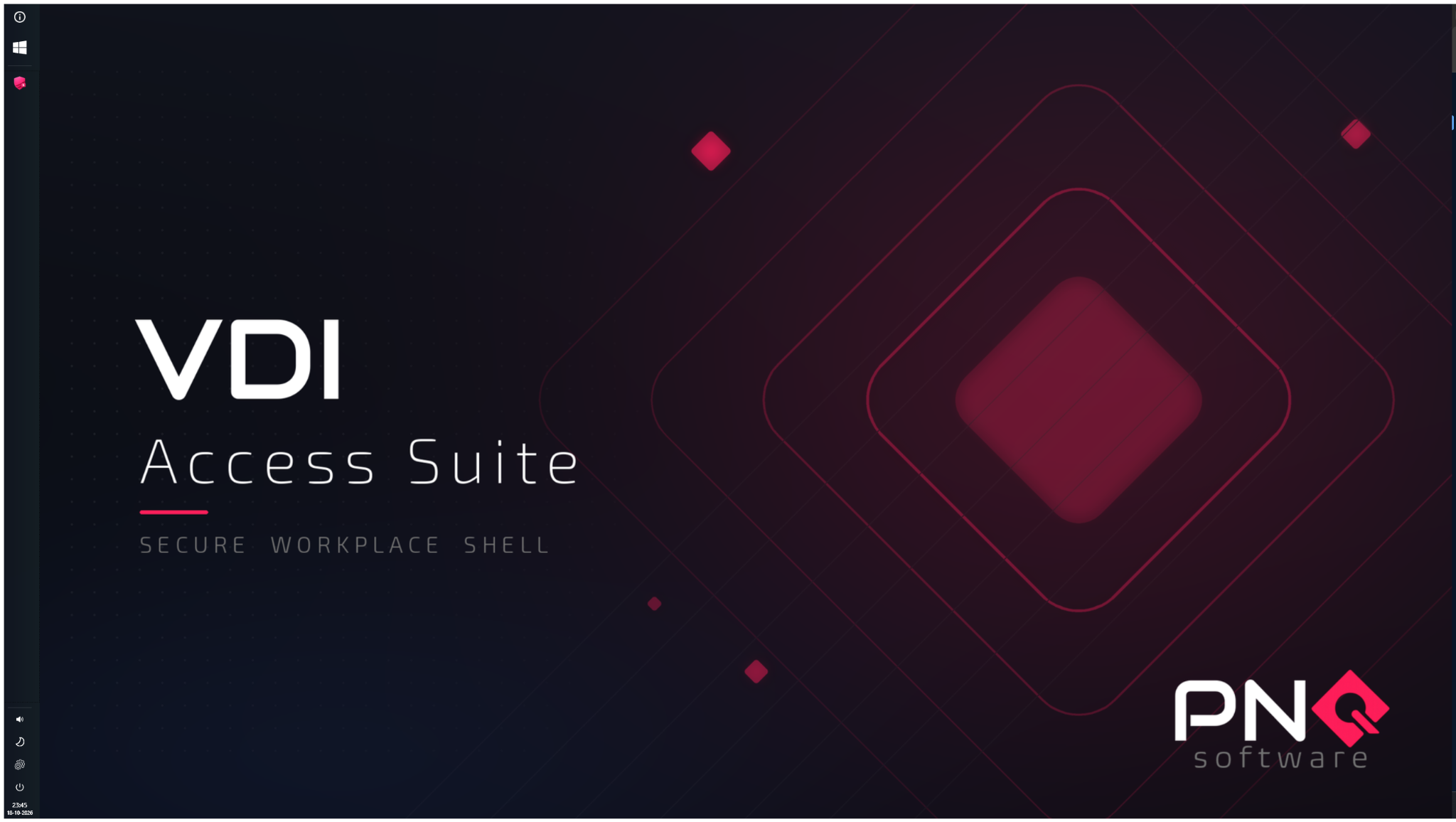
A controlled workspace can still support a familiar working day: start in a browser, open more applications and switch between them as work requires.
Configure the Suite to start with a kiosk web browser, opening a chosen service such as Copilot.
Use the Apps button to launch Microsoft 365 applications. Move beyond the initial browser session into the applications your work requires.
Opened applications appear on the taskbar. Switch between them using the taskbar or the familiar Alt+Tab shortcut.
Alt+TabAfter the last session ends, the configured action can log the user off, restart the device or shut it down.
Build a focused Windows workspace around the applications and services people need, whether they run remotely, in the browser or locally.
Provide access to Citrix, Omnissa and Microsoft RDP through a clear, controlled application launcher.
Start in a kiosk browser with Copilot, Microsoft 365, Salesforce or another service. Open Microsoft 365 applications through the Apps button, with taskbar and Alt+Tab switching available.
Present the application or workflow required for a dedicated kiosk or task-specific workstation.
Include VDI Access Suite in a preconfigured alternative boot environment to provide access to essential online applications.
A prepared alternate environment can help people return to essential cloud services while the primary Windows installation is being recovered.
An incident interrupts normal use of the PC. Your recovery plan includes an alternative Windows boot environment on a second partition, configured with VDI Access Suite.
Once verified safe to use, the alternative environment launches a predefined workspace with access to Microsoft 365 or other essential online services.
With connectivity, identity and application access available, users can resume supported online work while recovery of the primary environment continues.
Switching environments requires a restart and recovery checks. A second partition on the same device is not an isolated security boundary and may also be affected by an attack or disk failure. Use a validated, uncompromised environment and test access, identity, network and application dependencies as part of your recovery plan. VDI Access Suite provides the workspace; it does not itself detect, contain or remediate an attack, or guarantee zero downtime.
Use VDI Access Suite independently. Add VDI Access Suite Manager when you want central management, including built-in configuration for the shell.
Explore the Manager ↗Install VDI Access Suite on Windows 11 Pro, Enterprise or IoT Enterprise.
Configure applications, connections and branding.
Add the Manager for central configuration and deployment.
Discuss your environment and request a trial licence.
Talk to PNQ ↗