Fleet-wide visibility
See brightness, contrast, refresh rate, firmware version and monitor usage centrally.
ScreenGenie automatically applies the correct monitor configuration for every user, every workplace and every dock event. Brightness, contrast, refresh rate, monitor order, primary display and ergonomic alignment, fully automated for Windows 11.
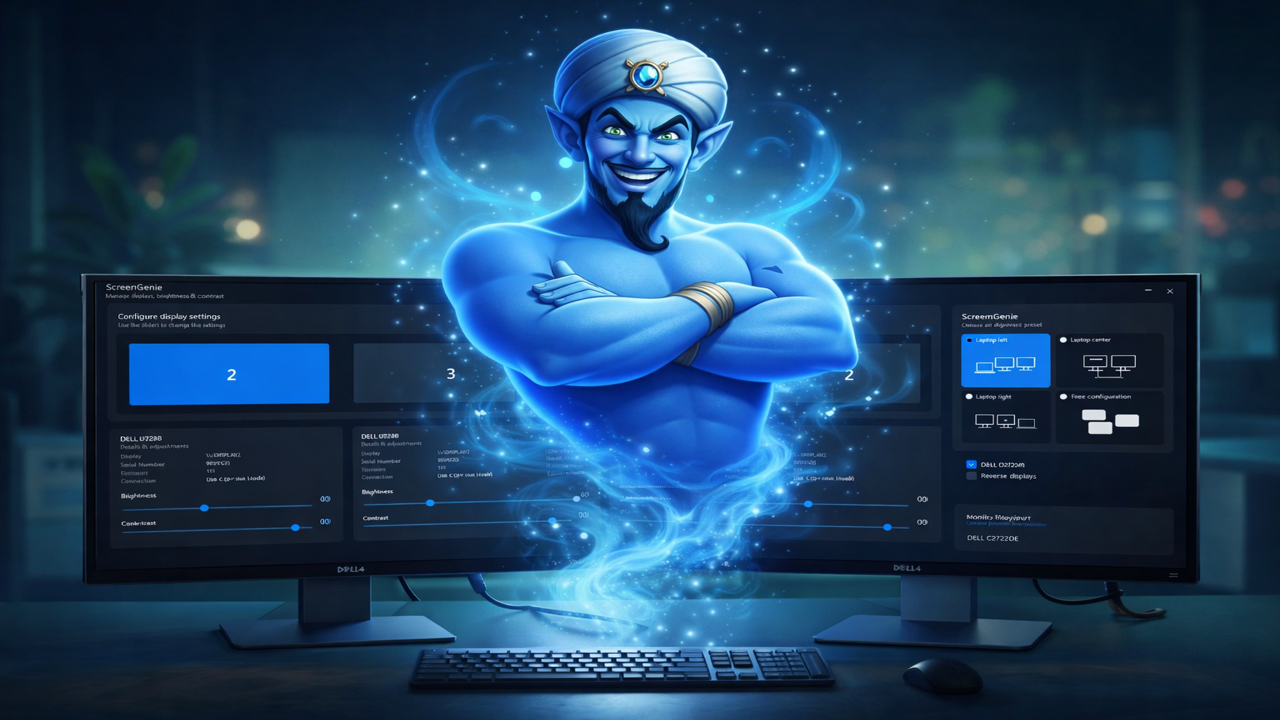
Watch how ScreenGenie automatically applies the right monitor configuration the moment a user docks in.
Employees spend most of their working day in front of monitors, yet display settings are rarely optimized for comfort or consistency. Wrong brightness, incorrect refresh rates and inconsistent monitor layouts create unnecessary eye strain and daily frustration — especially in flexible and hybrid workplaces.
ScreenGenie automatically applies the correct monitor settings when a user connects to a workplace. No manual corrections. No inconsistent layouts. No incorrect refresh rates. Just a consistent and ergonomic display experience.
Built for Windows 11 workplaces with docking stations, shared desks and multi-monitor environments.
of employees report eye-related discomforts related to their current monitor setup.
say poor monitor experiences reduce productivity during the workday.
report reduced satisfaction caused by uncomfortable monitor usage.
of organizations reported improved employee satisfaction after adopting eye comfort technologies.
Automatic display configuration
ScreenGenie automatically applies the correct monitor configuration for every docking event using a central manifest. Company policies set the baseline, but employees can save their own preferences on top, so personal adjustments are always respected. No more incorrect layouts, inconsistent refresh rates or users manually fixing Windows display settings. Whether employees work from flexible desks, shared workplaces or permanent docking stations, ScreenGenie ensures a consistent, ergonomic and policy-driven display experience across the entire organization.
ScreenGenie extends Windows 11 display management with consistent, centralized and automated monitor behavior.
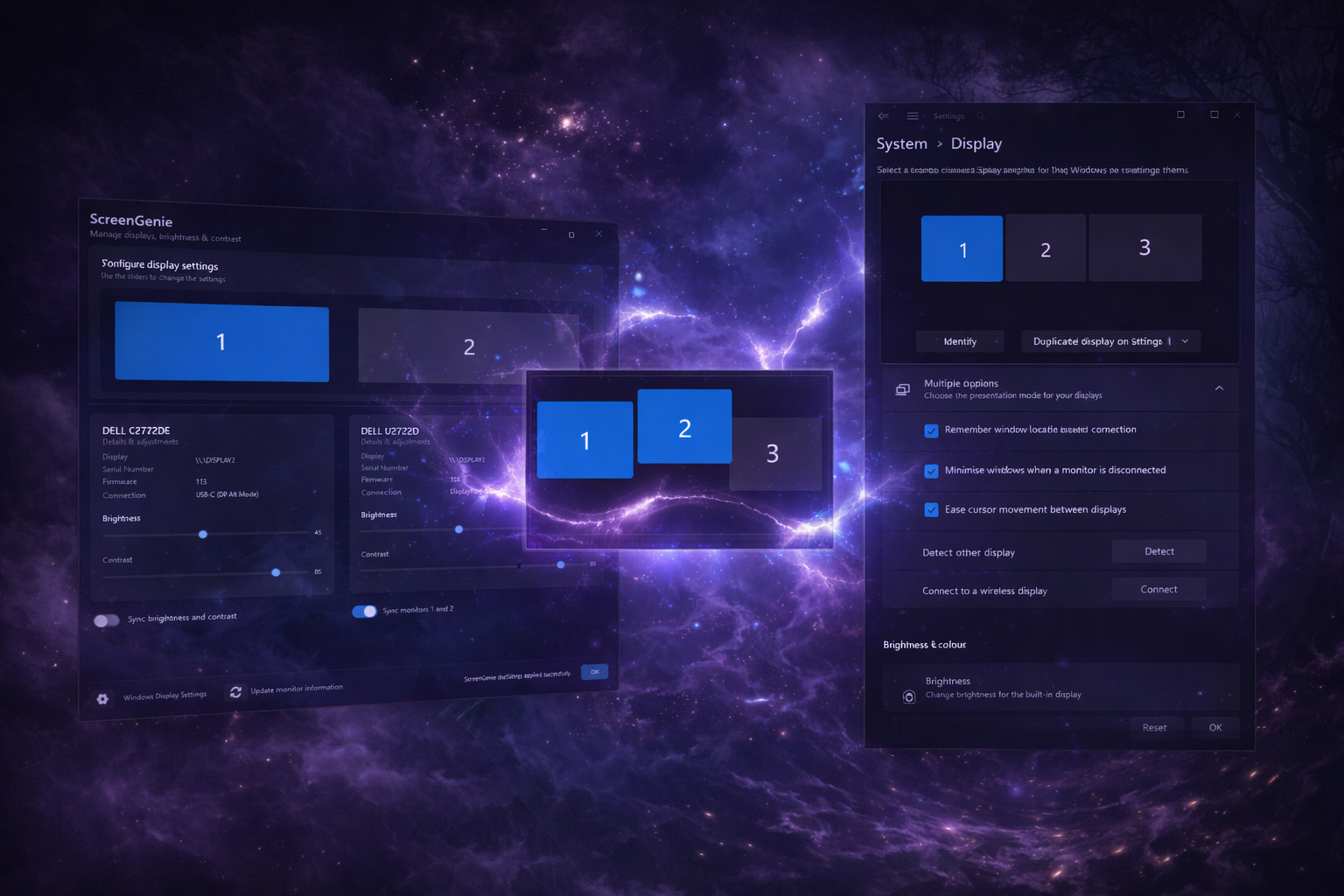
ScreenGenie is distributed as a standard MSI package, deployable via Intune, SCCM, GPO or any other software distribution tool. Silent installation including license key is fully supported — no manual steps per device.
Define the desired monitor settings per system: brightness, contrast, refresh rate, monitor order, primary display and vertical alignment. Policies are stored per system and per individual monitor, so every workplace gets exactly the right configuration.
At every sign-in or dock event, ScreenGenie automatically applies the correct settings — fully in the background, without any user interaction. No manual corrections. No incorrect layouts. Just a consistent, ergonomic display experience from the first second.
ScreenGenie telemetry provides insight into brightness, contrast, refresh rate, firmware version and monitor usage across the entire workplace environment.
Available as EU cloud-hosted telemetry or fully on-premise.
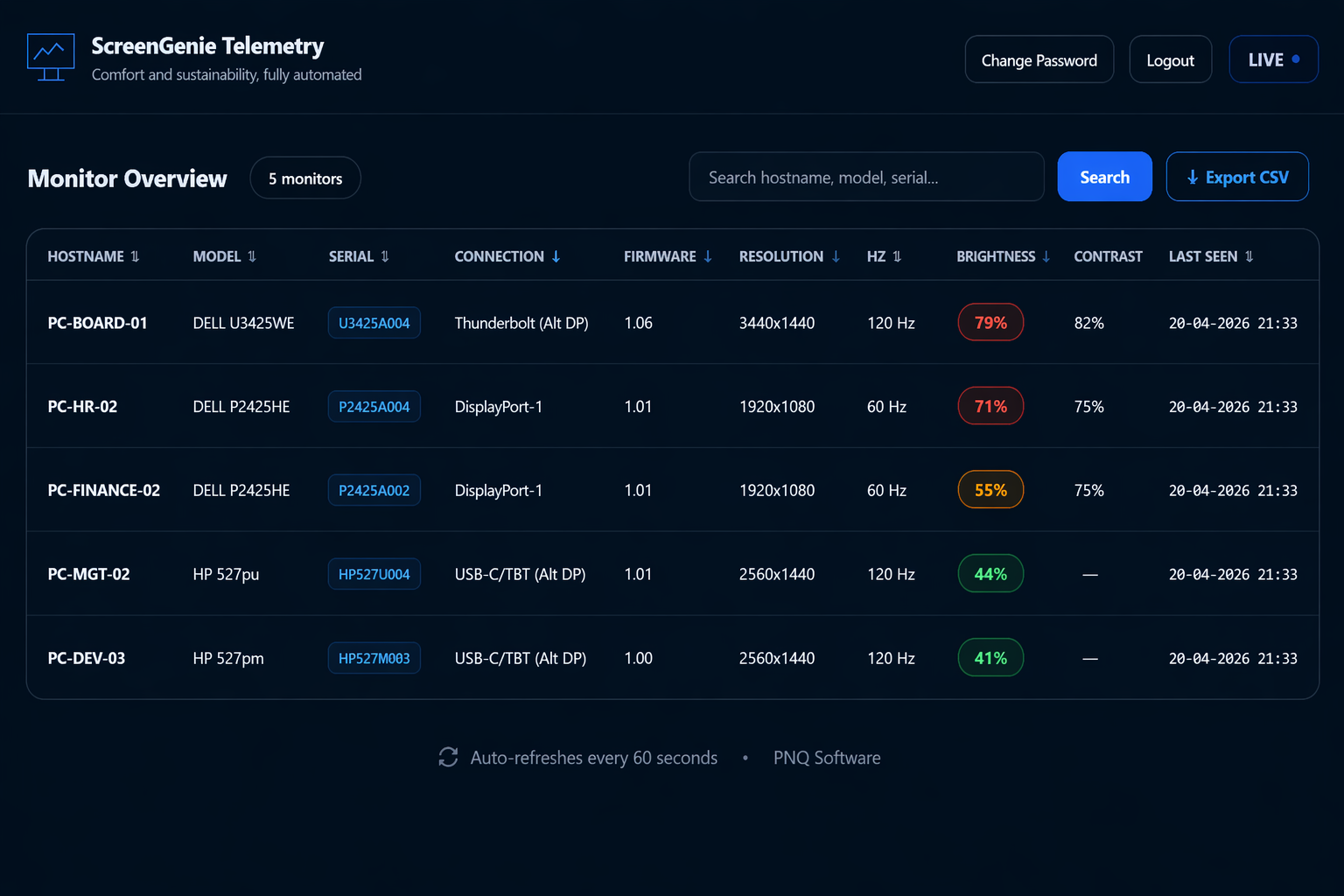
See brightness, contrast, refresh rate, firmware version and monitor usage centrally.
Verify that workplace display policies are actually applied across the organization.
Understand monitor usage, workplace consistency and deployment impact with measurable data.
Consistent monitor settings improve comfort, reduce frustration and create a predictable workplace experience.
Users can immediately start working instead of fixing monitor issues after docking.
Centralized brightness optimization reduces unnecessary energy consumption across the fleet.
ScreenGenie supports Intune, SCCM, GPO and centralized configuration deployment. Designed for flexible workplaces, docking stations and enterprise monitor fleets.
Discover how ScreenGenie improves comfort, productivity and monitor consistency.